
What ToolHub is—and is not
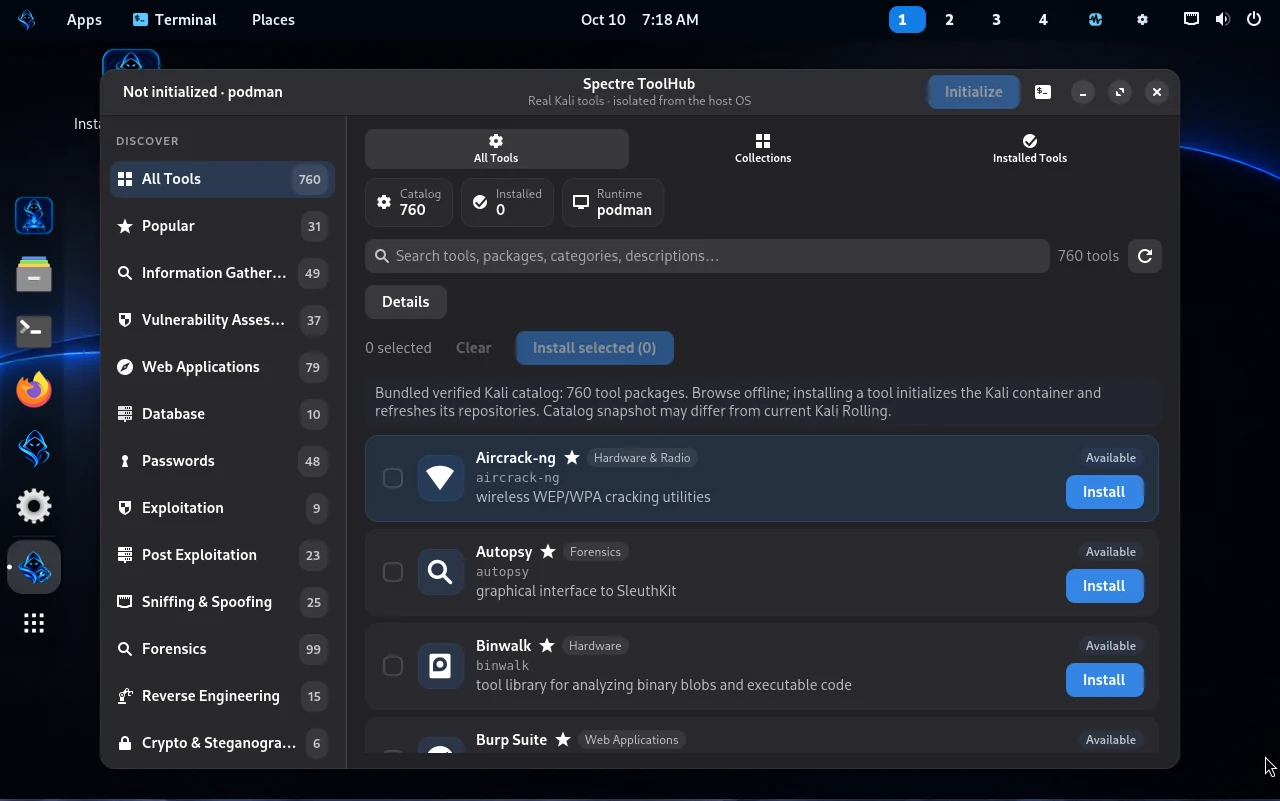
Spectre ToolHub is a native GTK4/libadwaita interface for exploring cybersecurity software associated with Kali Linux. It makes a specialized toolbox accessible from a general-purpose Spectre desktop.
A release-bundled offline metadata snapshot; it is not a promise that every listed package is installed, compatible or available forever.
Pulls the official Kali Rolling container when you choose to initialize the toolbox.
Installs selected Kali packages inside the container using its own APT package sources.
The existing container retains installed packages across a normal OS restart, as demonstrated with Nmap 7.99.
Inside the implementation
The release source identifies the Kali image as docker.io/kalilinux/kali-rolling:latest and the persistent container as spectre-kali-toolbox. The runtime is invoked through rootless Podman for the signed-in user.
The container is created with --security-opt no-new-privileges and a long-running process to enable repeated tool use. When the toolbox exists but is stopped, ToolHub starts that same container rather than needing to download a new one.
The Kali image is a minimal base. According to official Kali documentation, it does not arrive with the full default metapackage. That is why an on-demand, selective installer is useful.
Catalog, collections and live metadata
- Before initialization, browse the bundled offline snapshot without downloading Kali.
- After initialization, ToolHub reads available packages and metapackage information from the active Kali APT metadata.
- Collection cards describe Kali groups; installing a large metapackage can consume much more disk space and time than one utility.
- Package availability and descriptions can change when Kali Rolling repositories change.
- The UI can show installed status derived from the container package database rather than claiming every catalog entry is present.
Installing several tools in one batch
The native ToolHub interface supports selecting multiple catalog entries, confirming the selected packages, and showing per-package progress rather than silently installing everything at once.
- Choose up to 25 tools per batch. The interface displays a limit message when another item would exceed the selection cap.
- Review the confirmation dialog before installation. It warns that dependencies, download size, and disk usage vary by Kali package.
- Selected packages are processed sequentially inside the Kali container. A progress panel shows the current package, stage and available progress information.
- After the queue finishes, review the verified and failed package results. A partially completed batch is not equivalent to every selected package being installed.
For a first run, installing one package is easier to troubleshoot than a large batch. Reserve larger collections for a VM with enough storage and a rollback snapshot.
Your first tool, step by step
- Open ToolHub
Launch the application from the Spectre desktop. Review the available catalog and filters.
- Initialize the toolbox
Allow it to pull the official Kali image. Internet access and adequate disk space are required the first time.
- Pick one package
Choose a small, familiar tool. Avoid large all-tools collections while learning.
- Install it
ToolHub refreshes APT metadata and installs the selected Kali package inside the persistent container.
- Verify it
Run a harmless version command such as Nmap --version; this does not scan a target.
- Reboot and recheck
The existing container may be stopped after reboot; start it again and confirm your package is still present.
podman ps -a --format "{{.Names}} | {{.Status}}"podman start spectre-kali-toolboxpodman exec spectre-kali-toolbox nmap --versionMore useful commands
podman info --format "{{.Host.Security.Rootless}}"podman exec spectre-kali-toolbox dpkg-query -W -f='${Package} ${Version}\n' nmappodman exec -it spectre-kali-toolbox /bin/bashpodman exec spectre-kali-toolbox apt-cache policy nmapRun these as the signed-in desktop user, not with sudo podman. Rootless Podman stores user containers separately from root-owned containers.
Updates and installed-tool persistence
Installed Kali packages remain in a retained container. In testing, after a VM reboot the container reported Exited (137) but OOMKilled=false. Starting that same container restored access to Nmap 7.99 without reinstalling. This supports package persistence, not automatic container startup.
To refresh Kali package metadata, run apt-get update in the container or use ToolHub’s initialization/refresh workflow. Upgrading Kali Rolling packages can introduce version changes, so keep a recoverable copy of important lab work before upgrades.
Known limitations
- First-time image download and package installation require internet connectivity.
- The Kali Rolling image and installed tools consume separate disk space in user container storage.
- Default rootless containers may not support direct wireless monitor mode, packet injection, USB devices or certain low-level network operations.
- A terminal-based CLI tool does not automatically become a desktop GUI application.
- Security tools need authorized targets and safe environments; the ToolHub catalog does not imply endorsement for misuse.
Learn more
Review the architecture reference for runtime details and the troubleshooting guide if a tool, image pull or container fails. Official upstream reading: Kali container images and Podman rootless mode.